
Blog
Mail merge at scale (without Word tearing your hair out)
Word mail merge works fine for 10 letters. For 200, it falls apart at the printing stage. Here's how to keep your mail merge workflow but skip the manual printing, folding, and posting — using a feature called splitting.
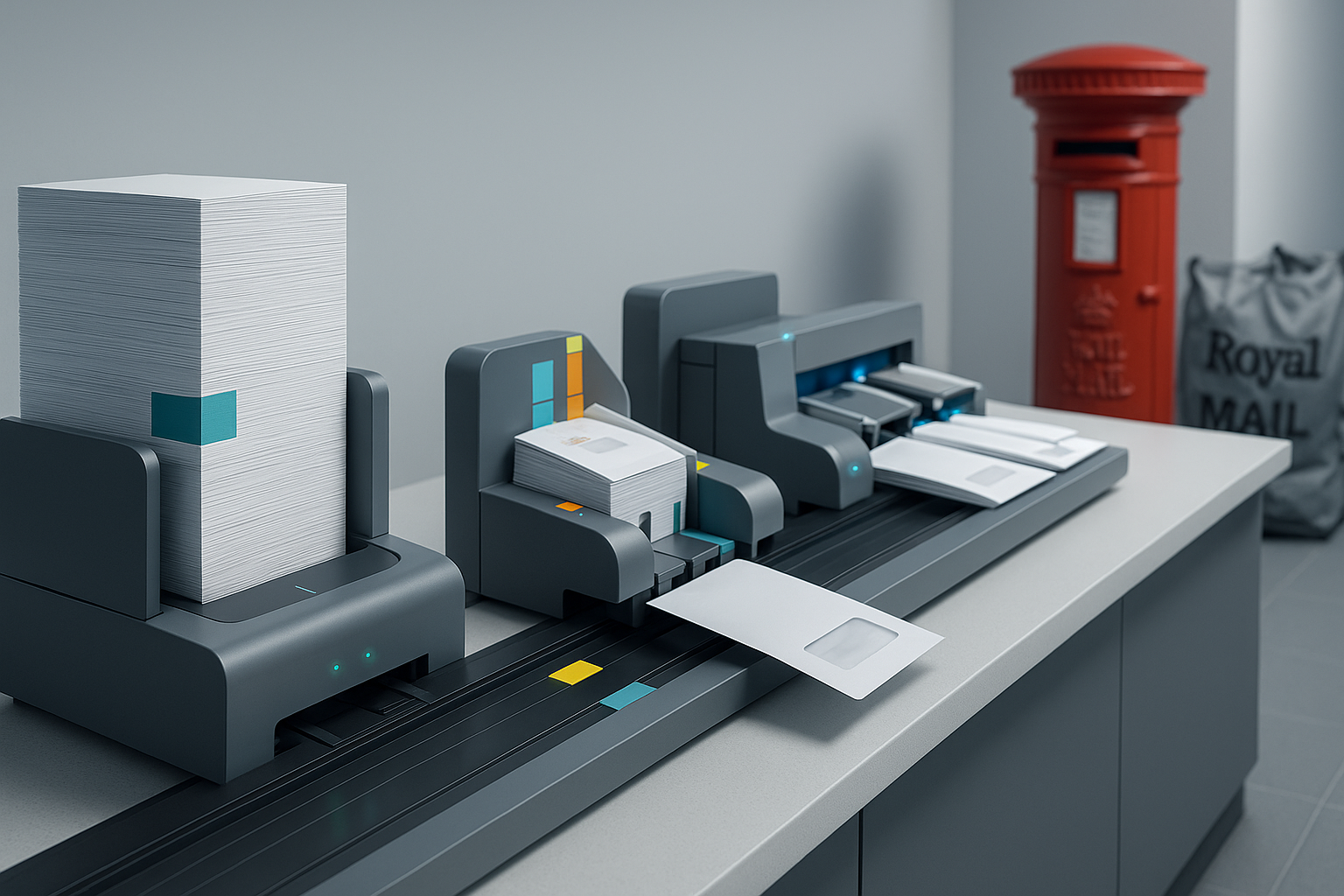
Mail merge in Word is one of those features that feels great at 10 letters and miserable at 200. You've set up the fields, lined up your data source, generated the PDF — and now you're staring at a 400-page document, a box of envelopes, and a shrinking afternoon. There's a better way to finish the job.
Where Word mail merge ends, and the real work begins
The mail merge itself is the easy part. You open Word, link to your Excel file or CSV, drop the fields into your template, and hit Finish & Merge → Edit Individual Documents. Out comes a single document with every letter, each personalised with the right recipient details at the top.
That's also where most guides stop. Nobody explains what to do next — because until recently, what came next was an afternoon of printing, folding, envelope-stuffing, label-printing, and trips to the post office. At 200 letters, that's at least half a day of someone's time. At 2,000, it's a week.
The splitting approach: upload the whole PDF, keep the workflow
Intelliprint has a feature called splitting that solves this specific problem. You keep doing everything you're already doing — Word mail merge, single PDF output with the recipient address embedded on each letter. Then you upload that one big PDF to Intelliprint and tell us how to split it: either a fixed number of pages per letter (e.g. every 2 pages is a new letter), or a keyword or phrase that marks where each letter begins (e.g. “Dear” or “Invoice number:”). We cut the PDF at those points and queue up individual mailings.
No per-letter uploads. No reformatting. No re-exporting as separate files. The mail merge template you've already built is the input; you tell us the splitting rule once, and splitting handles the rest.
Choosing the right splitting rule
Two ways to split, depending on your mail merge output:
- Fixed page count. If every letter in your merge is the same length (e.g. always 2 pages), set splitting to “every 2 pages” and you’re done. Simplest option, works for the majority of standard invoice or statement templates.
- Keyword or phrase. If your letters vary in length — some 1 page, some 3, depending on how much data each recipient has — use a keyword or phrase that appears on the first page of every letter. “Dear”, “Account number:”, “Invoice to:” all work. Intelliprint splits the PDF every time that phrase appears.
- Position the address in the C5 window area. 23mm from the left edge, 43mm from the top. That matches the standard C5 window envelope position and works for both C5 and C4 envelopes. The easiest way is to download the A4 or A5 letter template and use it as a reference layer under your Word design. Keep everything else well clear of this zone so the address stays machine-readable.
- Use an embedded font, or a system font. If the font isn’t in the PDF, we’ll substitute. PDF/A export (File → Save As → PDF, Options, PDF/A compliant) is the cleanest way to make sure fonts are embedded.
What splitting does behind the scenes
When you upload the PDF and set the splitting rule, Intelliprint cuts the document at each split point, extracts the address from each resulting letter, and previews the result. You see exactly how the PDF has been split before anything is printed — so if you’ve picked the wrong rule, you adjust and re-preview before committing.
From there, you pick your envelope size (C5 for most standard letters, C4 for documents you'd rather send flat), your postage class (1st, 2nd, Signed, Special Delivery), and confirm. Upload before 3pm, posted the same day.
When to use the API instead
Splitting is the fastest route if you're already doing Word mail merge or have a line-of-business tool that exports batch PDFs. If you're generating letters programmatically from a CRM or accounting system, the Intelliprint API lets you skip the PDF step entirely — pass content and recipients directly, one API call can create thousands of mailings. Both routes produce the same output at the same per-piece price.
The rule of thumb: if a human sits at a computer and kicks the job off, splitting is usually simpler. If the job is triggered by a system event (invoice issued, subscription renewed, appointment booked), the API is cleaner.