
Mailing & production
Templates and postcards
Find a saved letter or postcard, or start a new A6 or A5 postcard. For a bulk mailing, start from the recipient list so the design matches its fields.
Last reviewed · By Intelliprint Team
Manage your reusable designs
Open Designs, then Templates. Use the search box, sort order and type filters to find a letter, A5 postcard or A6 postcard. Switch between grid and list views, and use Edit to open a design.
Use New letter or New postcard to create a design. For a bulk mailing, start from the recipient list instead, so you can check the design matches its fields.
Deleting a template: the library has a Delete action. Check you have selected the right design before you remove it.
Start a postcard
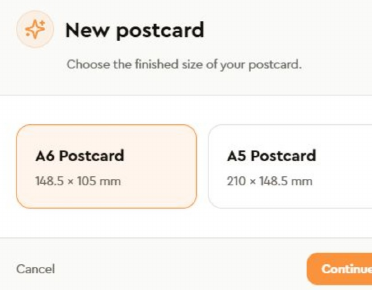
Choose New postcard and pick the finished size: A6 Postcard (148.5 × 105 mm) or A5 Postcard (210 × 148.5 mm). Select Continue, then use Front and Back to work on each side.
The designer has Elements, Layers and Fields, with tools for text, images, shapes and QR codes.
Check both sides in Preview, including recipient and field details, and save the template when it is ready. Then carry on through print setup and check the draft before you submit.
Some accounts can also send an enveloped postcard. That size is chosen when you set up the print, not in this size step. See choosing an envelope or postcard size.