
Account & team
Invite members and set up teams
Invite someone with a role and restrictions, then create teams that share access and a starting set of print defaults.
Last reviewed · By Intelliprint Team
Invite a member
The Team page lists your account members and teams. Each member shows their name, role, team and the date they were added. Use the controls your role allows to manage access.
- Select Invite in Account members.
- Enter their email address.
- Choose a role and, if needed, a team.
- Check the Restrictions before sending.
- Select Invite when the access is right. They get an email link to join.
Roles are Owner, Admin, Team Admin, Team Leader, Standard and Analyst. Different roles see different controls.
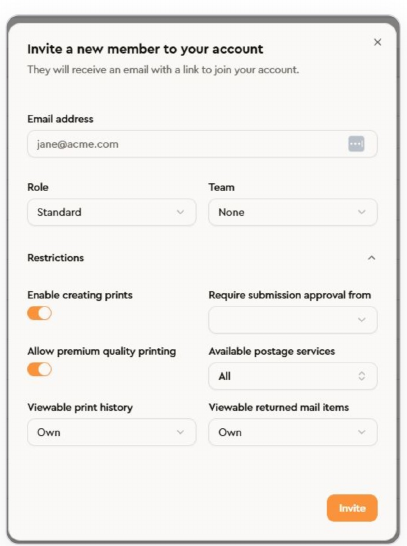
Restrictions you can set: whether they can create prints, who must approve their submissions, premium printing, which postage services they can use, and which print history and returned mail they can see. Check these alongside the team you have chosen.
Create a team
Teams group members who share access and resources. Give each team a clear name, so members and admins can recognise it in lists and in background settings.
Select Create in the Teams section and enter the name. To set the team's starting print choices, open Default print settings. Check the values, then select Create.
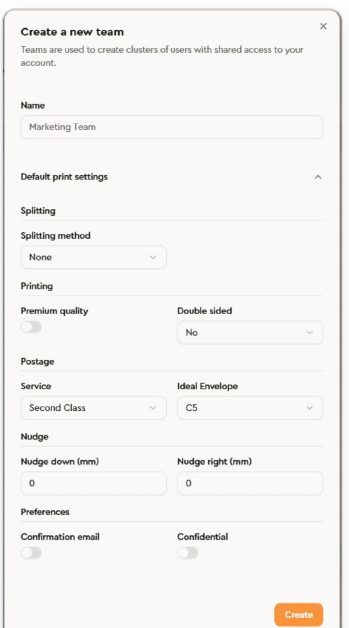
Defaults you can set: splitting method, premium quality, double sided, postage service, ideal envelope, nudge down, nudge right, confirmation email and confidential printing.
Defaults are only a starting point. Check the actual settings on each draft before you submit it.
Choose the team when you invite members or manage who belongs to it. To make a letterhead available to a team, go to Designs, then Backgrounds, then Edit, then Available To.
Need a hand? Email support@intelliprint.net or call 0113 224 6910.