
Getting started
Finding your way around the dashboard
Sign in at dashboard.intelliprint.net, check the account and Live mode, then start a print or open a support ticket from the sidebar.
Last reviewed · By Intelliprint Team
Sign in at dashboard.intelliprint.net with your account and follow the sign-in prompts. Once you are in, Home gives you shortcuts to new prints, saved drafts, mailing lists and designs.
Find your way around
- Home — your dashboard and saved drafts. Home, then Resume drafts, is the quickest way back to unfinished work.
- Mail — Print History, Returned Mail, Mailing Lists and Merge PDFs.
- Designs — reusable templates and backgrounds.
- Reports and Billing — activity, spend, funding and invoices.
- Settings — account, team and profile.
- Developers and Support — integrations, and help when you need it.
Check the account and the mode
Before you start work, check the account name and the mode indicator. LIVE MODE means you are working in the live account. TEST MODE is the other setting: those jobs are not charged and are not posted. The controls you see can depend on your permissions.
See test mode and submitting for how a test job differs from a confirmed one.
Start a print
Select New print in the sidebar, or Start a print on Home. Then choose one of these:
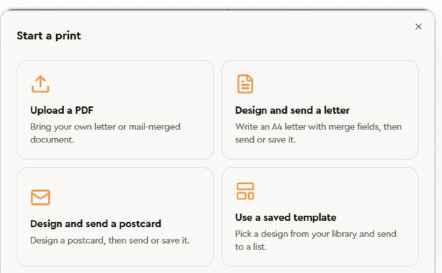
- Upload a PDF — bring your own letter or mail-merged document.
- Design and send a letter — write an A4 letter with merge fields, then send or save it.
- Design and send a postcard — design a postcard, then send or save it.
- Use a saved template — pick a design from your library and send to a list.
For a personalised bulk mailing, start from a mailing list instead. See importing a mailing list.
Ask for help
Choose Support, then New support ticket. Enter a subject and message, say what happened and what you expected, and include the print reference. Use Add files for a screenshot or document, then select Open ticket.
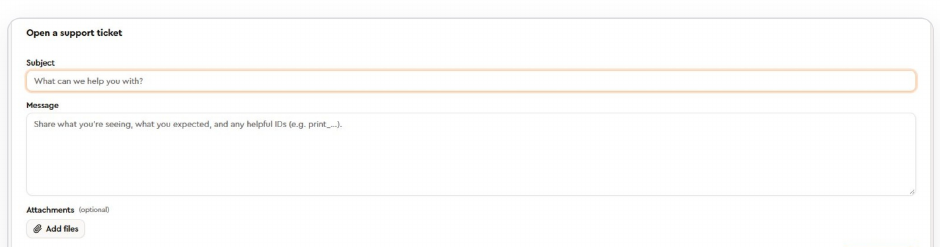
The ticket list filters by All, Open and Closed. Replies arrive in your inbox and in Support, so open the ticket to follow the conversation.
Developers
Open Developers for Overview, API Keys and Webhooks. Treat API keys like passwords. Keep them out of shared screenshots and documents.
Setup guides are in the developer docs. Every endpoint is in the API reference. For the shortest orientation, see getting started with the API.